Learn to Draw Cartoon

5M+
Installs
Creative APPS
Developer
-
Art & Design
Category
-
Rated for 3+
Content Rating
-
Drawapp.feedback@hotmail.com
Developer Email
-
https://sites.google.com/view/draw-apps-for-free/
Privacy Policy
Screenshots
editor reviews
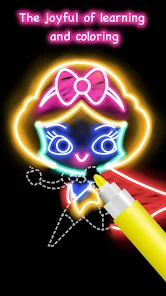
“Learn to Draw Cartoon” is an instructional drawing app that teaches you how to sketch popular cartoon characters step by step. It falls under the creative education category, sitting somewhere between a guided tutorial and a digital coloring book. I came across it on Google Play, where it has over a million installs and is free to download. After opening it for the first time, I was greeted by a simple interface with a grid of character thumbnails, which immediately felt familiar and easy to navigate. You don't need to register to use the app, which speeds up the initial launch process. However, there are a few ads that pop up between lessons, and there is an option to purchase a premium version to remove them. That first impression was decent but not mind-blowing.
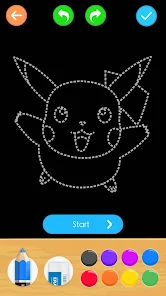
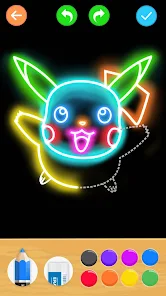
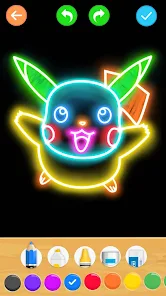
When I actually started drawing with it, the experience was surprisingly hands-on. You pick a character, say a smiling cat, and then follow a series of slides that break the image down into basic shapes. Each slide shows a new line to add, and you draw along on a paper over your desk or use the in-app canvas with your finger. The interface is clean: there is a pencil tool, an eraser, and a zoom button so you can get closer to details. I did find the touch drawing a bit awkward because my finger kept slipping on smaller details, but once I used a stylus it became much smoother. The app also offers a replay feature where it runs through the drawing steps automatically, which I found useful for previewing before committing. A practical tip: if you get stuck on a tricky curve, just slow down the slide speed from the settings menu. That helped me a lot.
After using it for a few weeks, I think this app is best for absolute beginners and kids who just want a fun way to learn drawing without overthinking. It is not designed for experienced artists looking for advanced shading or anatomy lessons. What makes it stand out from apps like “How to Draw” or “Drawing Desk” is that it focuses entirely on cartoon characters you might recognize from pop culture, so there is a sense of accomplishment when you finish a piece. But the lack of community features or feedback mechanisms means you are entirely self-taught here. I kept it installed because my niece enjoys it during car rides, but I could see someone uninstalling it once they outgrow the simple step-by-step approach. It is a decent tool, just not one you will use forever.
features
- 🎨 Step-by-step slide guidance: Each character is broken down into 10-30 slides, each adding a new line. You can swipe forward or backward, so you never miss a step. Compared to other apps like “Drawing Tutorials” which sometimes skip from a circle to a full face, this one is much more patient.
- 🎨 Replay mode: There is a small play button that shows the entire drawing process in a loop. This is great for seeing the overall flow before you start. “How to Draw Easy” does not have this and I often get lost in the middle of a shape.
- 🎨 No registration required: You can pick any lesson immediately without signing up. Many similar apps like “Sketch Guru” force you to create an account or log in with Google before seeing content. This app skips that entirely, which feels refreshing.
- 🎨 Offline capability: Once you load a character pack, you can draw without internet. That helped me during commutes, while “Draw Cartoons 2” kept buffering and failing on the train.
pros
- ⬆️ Large library of recognizable characters: The app focuses on popular cartoon faces from classic shows and movies. “How to Draw Heroes” mostly teaches generic superhero poses that feel dry, but here you get stars like Pikachu or SpongeBob which makes practice feel like play.
- ⬆️ Simple interface for young users: The buttons are big, icons are clear, and there is no confusing menu tree. “Drawing for Kids” uses tiny icons that my 7-year-old nephew struggles to tap, but this one is much friendlier for small fingers.
- ⬆️ Low barrier to entry: It is completely free to start all lessons. “Art Lessons” locks half of its tutorials behind a paywall right away. Here you can try everything first and only pay if ads bug you.
cons
- ⬇️ Inconsistent character difficulty: Some lessons jump from a simple oval to a detailed face with eyes, nose, and mouth all at once. “Learn Drawing” does a better job of keeping each step small. Beginners may get frustrated on certain characters and give up.
- ⬇️ No undo or redo for the canvas: If you make a mistake on the drawing area, you have to erase manually or clear the whole thing. “PaperDraw” has a proper undo button which saves time.
- ⬇️ Ads between lessons: A 15-second video pops up after every third slide. In “Easy Sketch”, ads only show at the very beginning of a lesson, so the flow is less interrupted.
- ⬇️ No feedback or community: There is no way to share your work within the app or get tips from other users. “Drawing Together” allows you to post sketches and get likes, which keeps motivation high. Here you are just drawing alone.
Recommended Apps
![]()
Phone Tracker - Phone Locator
Lutech Ltd4.1
![]()
Cartoon Photo Editor
AZ Mobile Software4.5
![]()
Speak to Santa™ - Video Call
North Pole Command Centre Limited4.4![]()
Gay Dating & LGBT Hookup App
Hookup Apps to Hook up Local Dating4.5![]()
Wonder - AI Art Generator
Codeway Dijital3.7![]()
Shazam: Find Music & Concerts
Apple Inc.4.8![]()
Lightroom Photo & Video Editor
Adobe4.5![]()
Crush Love Tester
A.L Studio3.7![]()
Daily Horoscope
Horoscope by Comitic4.8![]()
Kissing Test Calculator
We Love pranks3![]()
Filters for pictures - FaceArt
VysionApps2.8![]()
Pinterest
Pinterest4.5![]()
QR Code Reader Barcode Scanner
Celebrity App Studio3.9![]()
PicSo – Customize Your AI Girl
Meta Insight3.7![]()
Does He Like Me?
KDR Games4.3














Disclaimer
1.AppInfoLibrary does not represent any developer, nor is it the developer of any App or game.
2.AppInfoLibrary provide custom reviews of Apps written by our own reviewers, and detailed information of these Apps, such as developer contacts, ratings and screenshots.
3.All trademarks, registered trademarks, product names and company names or logos appearing on the site are the property of their respective owners.
4. AppInfoLibrary abides by the federal Digital Millennium Copyright Act (DMCA) by responding to notices of alleged infringement that complies with the DMCA and other applicable laws.
5.If you are the owner or copyright representative and want to delete your information, please contact us info@appinfolibrary.com.
6.All the information on this website is strictly observed all the terms and conditions of Google Ads Advertising policies and Google Unwanted Software policy .